US passport photo guide
How to take a passport photo with an iPhone
You can take a US passport photo at home with an iPhone. The important part is capturing a clear, unchanged photo that meets the rules for your specific application. A paper application and an online renewal have different delivery steps.
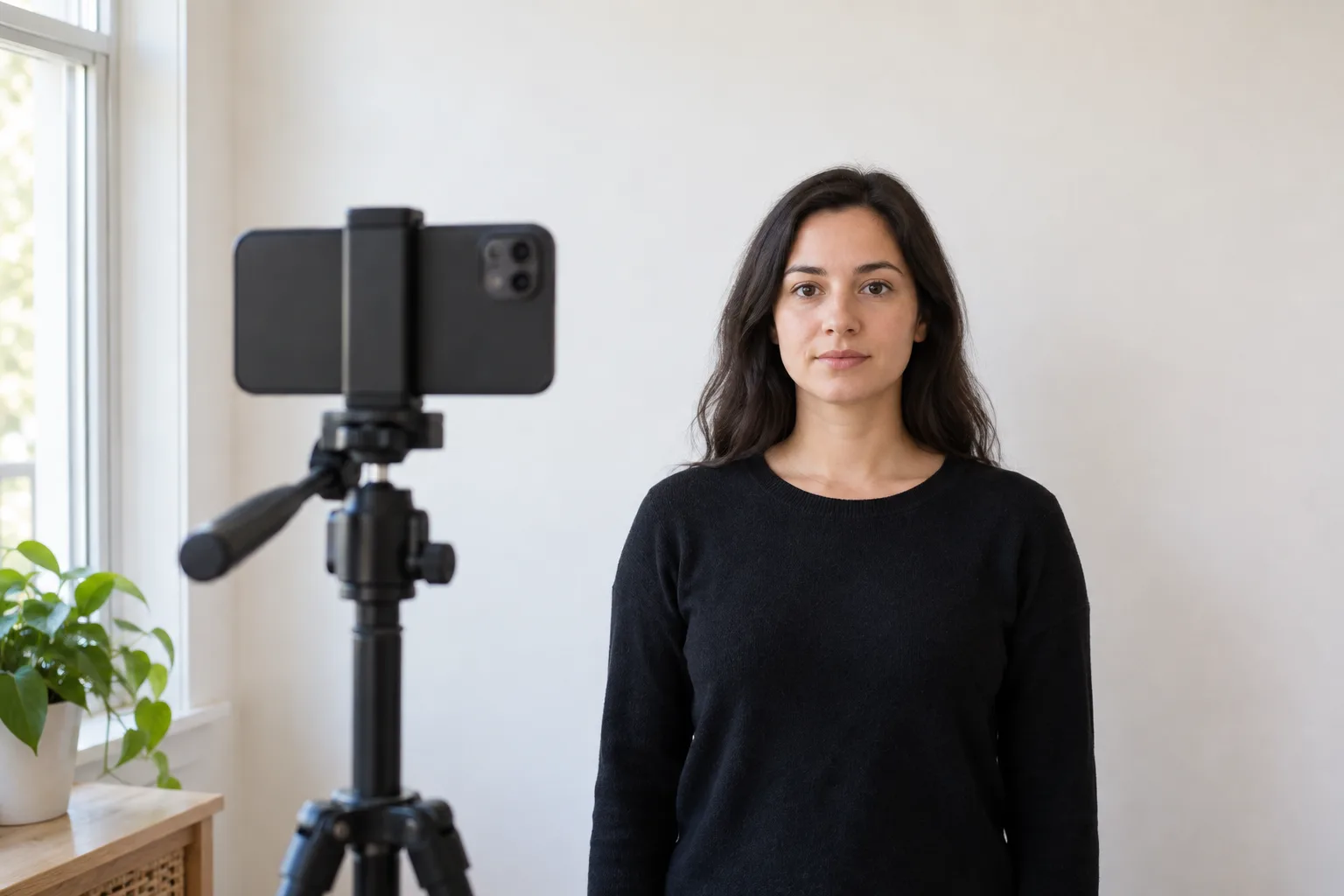
Five steps, from camera to submission
1. Choose the application route first
Paper applications need one 2×2 inch color print on photo-quality paper. Online renewal takes an original digital photo uploaded inside the State Department application. The file you prepare depends on the route.
2. Set up a plain background
Stand several feet in front of a white or off-white wall or sheet so you do not cast a shadow. Remove objects, patterns and visible wall lines from the frame.
3. Ask someone to take the picture
Use the iPhone's regular camera in Photo mode at about eye level. Have another person hold the phone or use a stable stand and timer. Face the camera directly, keep your head upright, and include your full head and shoulders. A close selfie can distort your face.
4. Check the original image
Use even light that shows natural skin tone. Remove glasses and avoid filters, Portrait effects, beauty modes, background replacement, AI edits and retouching. Retake blurry, shadowed or poorly framed photos.
5. Finish for the correct route
For paper applications, print the photo at the required 2×2 inch size on photo-quality paper and check the State Department's head-size examples. For online renewal, upload the original file in the official application; its built-in photo tool allows repositioning or cropping and checks basic requirements.
Paper application or online renewal?
Applying in person or by mail
The State Department requires a recent color photo, printed 2×2 inches on photo-quality paper. Its official Photo Tool is intended for cropping photos for these paper applications. Verify the print size and head position against the official photo examples.
Renewing online
Upload your original, unedited iPhone image directly in the official online renewal flow. The State Department accepts JPG, JPEG, PNG, HEIC and HEIF files from 54 KB to 10 MB. It says to use the crop or reposition controls inside its application.
The government Photo Tool specifically says it is not for online passport renewals. A third-party crop or background change cannot guarantee acceptance. An employee reviews the photo after submission.
Questions people ask before using a phone
Can I take my own passport photo with an iPhone?
Yes. Put the phone on a stable stand and use its timer, or ask someone to take the photo. Keep the lens around eye level and leave room around your head and shoulders. Inspect the full-size original for blur and shadows.
Should I use Portrait mode or a passport photo app?
Use a normal, unfiltered photo. Portrait mode can alter the background around hair and shoulders. The State Department prohibits changing a passport photo with phone apps, filters or AI. For online renewal, use the original file and the official upload tool.
Can I use an Android phone instead?
Yes. The same lighting, background and unedited-image rules apply. If you need a basic 2×2 print layout, our browser-based 2×2 crop tool works on supported phones; it is not a native Android app or an official approval check.
Is a USCIS photo tool the same thing?
No. US passports are handled by the Department of State. USCIS photo evidence depends on the immigration form you are filing. Read that form's current evidence instructions in your USCIS account rather than applying passport renewal upload rules to it.
Need a basic paper-photo crop?
Our free crop tool prepares a square JPEG and a 4×6 print sheet. Check the original image and your application rules before printing; it does not verify government acceptance.
Open 2×2 crop tool