UK passport photography
How to take a UK passport photo with an iPhone
You can use an iPhone to take a UK passport photo at home. Ask someone to take the picture, use normal Photo mode in even light, and keep the original unedited. For an online application, GOV.UK says not to crop a photo taken on your own device: the application does that for you.
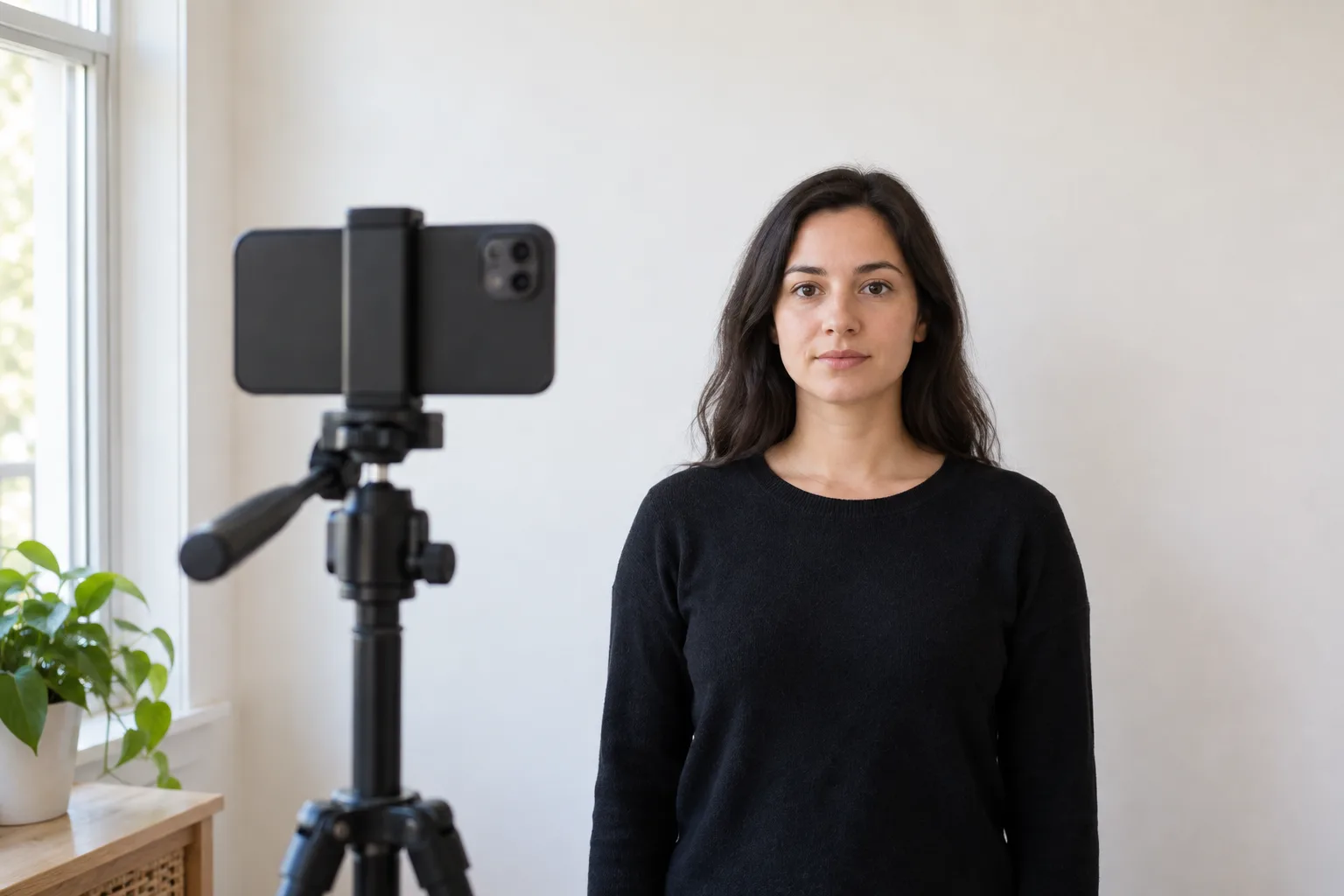
Set up your iPhone before taking the picture
- Find a plain, light-coloured background. Leave enough distance from the wall to avoid a shadow behind you. Remove objects and patterns from the frame.
- Use even light. Face a light source that illuminates both sides of your face. If the picture has shadows or glare, change your position and retake it.
- Ask someone to hold the camera at eye level. Keep your head, shoulders and upper body in the frame. Avoid a close selfie that changes facial proportions.
- Use ordinary Photo mode. Avoid Portrait background effects, filters and retouching. Keep your head straight, eyes visible, mouth closed and expression neutral.
- Inspect the original. Zoom in to check focus. Retake a blurred or shadowed picture instead of trying to repair it with editing software.
UK digital passport photo requirements
- A colour photo taken within the last month.
- At least 600 pixels wide and 750 pixels tall.
- A file between 50 KB and 10 MB.
- A clear, focused image unaltered by software.
- No other people or objects, and no shadows on your face or behind you.
Upload through the official passport application and follow its prompts. Do not replace the background, remove skin features or crop your home photo before uploading. Check the GOV.UK digital photo rules for glasses, head coverings and exceptions for children.
Photo file, photo code or printed photo?
A photo code from a participating booth or shop retrieves a digital photo during the application. An image saved on your iPhone is a photo file, not a photo code. GOV.UK also allows a photo taken using your own device with someone helping you.
For paper applications, follow the separate UK printed-photo instructions. Do not use the US 2×2 inch print specification for a UK application.
Can I take an ID photo with an iPhone too?
It depends on the issuing organisation. A student card, visa and national identity card can have different sizes and upload rules. Check the exact document instructions before using a passport crop or editing the background.
What if I live in Germany?
Your location and the country issuing your document are different things. This guide covers a UK passport photo. For a German passport or Personalausweis application at an authority in Germany, use the required registered-provider or authority capture process rather than a home iPhone upload. Read our German passport photo guide and check the instructions of your application office.
Do I need a passport photo app?
You do not need an editing app to capture the original. A clear, unedited photo and the official upload flow are the important parts. Software preparation does not guarantee HM Passport Office acceptance.
What to check if your photo upload fails
Start with the message shown by the application. A file-size problem and a photo-quality problem need different fixes; repeatedly submitting the same image will not resolve either.
- The file is too small or the dimensions are too low
- Check that you selected the original camera photo rather than a thumbnail or screenshot. Compare its dimensions and file size with the limits above. If the original itself is too small, take a new photo; enlarging it cannot recover missing detail.
- The face is blurred, shadowed or partly hidden
- Retake the picture after correcting the capture conditions. Move away from the wall for background shadows, adjust the light for face shadows, and keep the camera steady for blur. Do not use a filter or background replacement to repair it.
- The head is cut off or there is too little room around it
- Ask your helper to step back and include your head, shoulders and upper body. Leave the home photo uncropped for the official application to frame.
- You are being asked for a photo code
- A filename or a QR code you create yourself is not a booth or shop photo code. Follow the application instructions for supplying your own digital photo, or obtain a code from a participating provider.
Before submitting, check the original at full size: both eyes visible, mouth closed, neutral expression, sharp face and no shadows. These checks are for an adult; use the official child-photo exceptions when photographing a baby or young child.
Published by ApprovaVisa. Official source guidance checked on . The linked GOV.UK instructions take precedence if requirements change.